★ The offer creator, labelled
This is the screen where you build an offer. Each numbered marker on the screenshots points to a control — find the number below to read what it does, and click any item to jump to the full section. Start here if you're not sure what a field does.
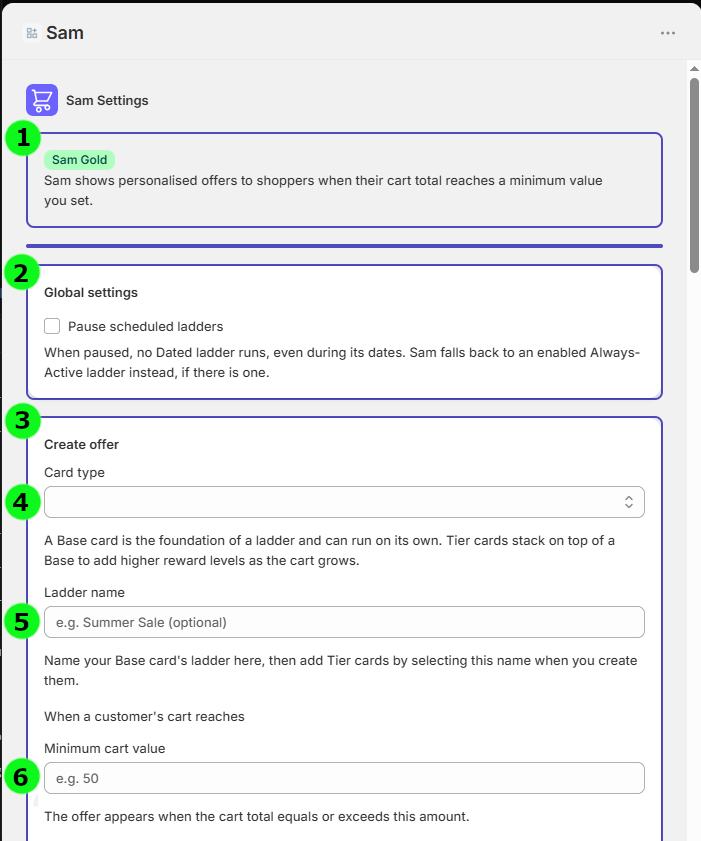
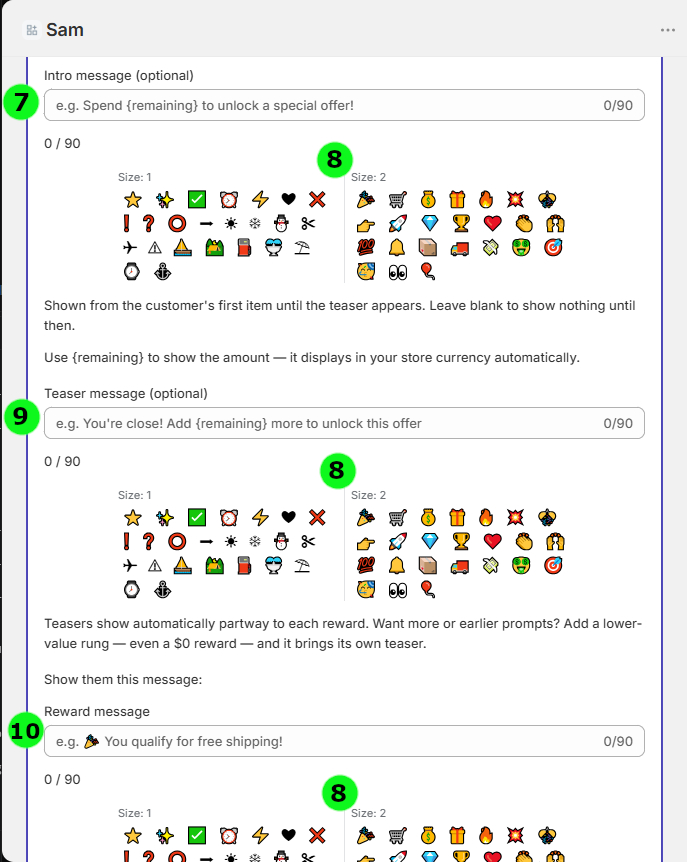
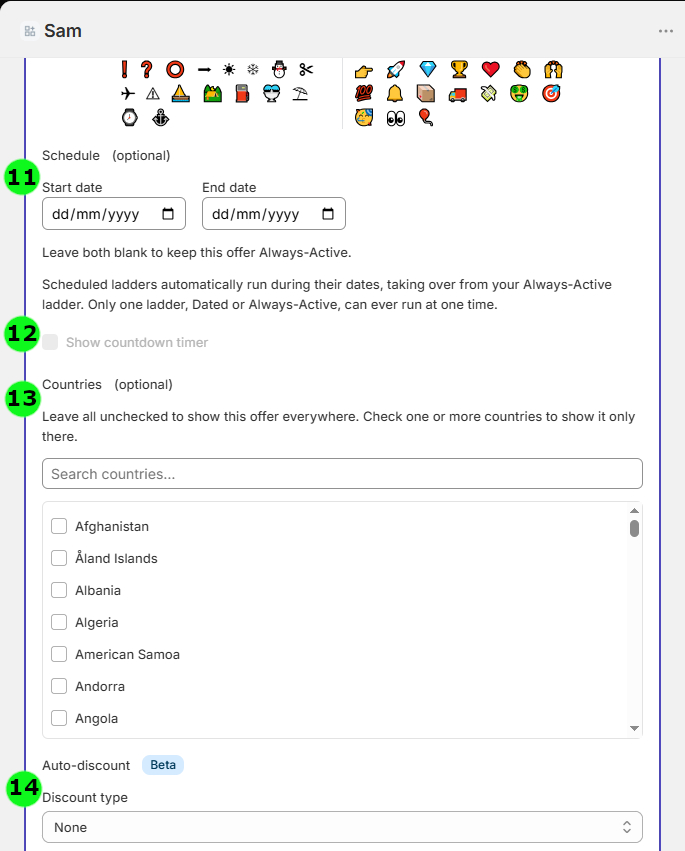
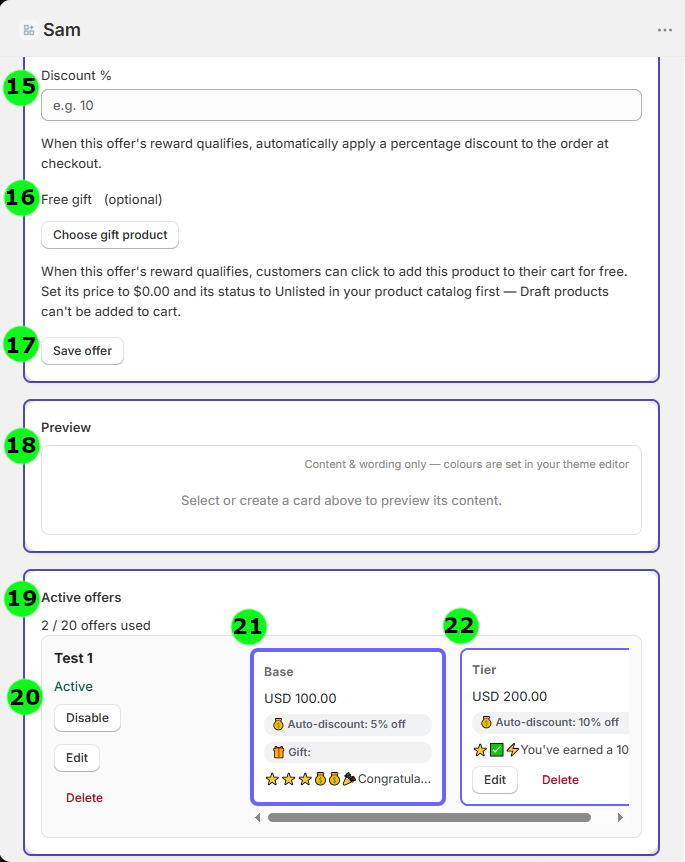
Reads down the left column (1 → 2), then down the right (3 → 4). Tip: zoom in on the page if the numbers are small.
1. The ladder system
The ladder is Sam's core engine. Shoppers unlock rewards as their cart total climbs past thresholds you set — the higher they spend, the better the reward.
Thresholds & rungs
Each rung of a ladder is a spending threshold and the reward it unlocks. Set a threshold (say $75), pick what it gives (a discount, free shipping, or a gift), and Sam shows shoppers exactly how far they are from reaching it.
Base cards and tier cards
- A base card is the anchor of a ladder. It owns the ladder's identity, its name, and (on Sam Gold) its dates and country targeting.
- Tier cards are extra rungs that attach to a base — higher thresholds unlocking bigger rewards. Tiers inherit the base's schedule and targeting.
- Sam groups tiers under their base and renders them as one ladder, read left-to-right (base → higher tiers).
How the reward is chosen
Sam always gives a cart the best reward it currently qualifies for — it "snaps" to the highest rung the cart has reached. As shoppers add more, they move up automatically; if they remove items, they move back down. It's always live and always accurate.
2. Reward types
Choose what each rung unlocks. There are four reward types (plus a message-only option). Percentage, fixed-amount and free-shipping rewards apply automatically at checkout — no separate Shopify discount to create.
Percentage discount
Takes a percentage off the cart (e.g. 10% off) when the shopper qualifies. A percentage isn't tied to any currency — 10% is 10% for every shopper, everywhere — so you can write it freely in your banner messages without worrying about conversion.
Free shipping
Removes the shipping cost at checkout once the threshold is reached. Simply choose free shipping as the reward and set the spend required — Sam handles the rest. Like a percentage, it carries no currency figure, so it's safe to mention plainly in your banner.
Free gift Sam Gold
Automatically offers a product from your catalogue as the reward. To set one up: create the gift product in Shopify, set its price to $0.00 and its status to Unlisted (Draft products can't be added to a cart), then choose it with Choose gift product in the reward settings. When the shopper qualifies, they can add it to their cart for free.
Fixed-amount discount
Takes a set amount off the cart total (e.g. $50 off). Sam handles this in your shop's own currency. If a shopper is browsing in a different currency, the amount isn't shown converted on the banner — but it is automatically converted at checkout, so the discount they receive is correct for their currency.
Message-only rung
A rung that shows a message with no reward attached — useful for pure encouragement ("Almost at free shipping!") or to add an earlier teaser prompt.
4. Styling & fonts
Sam is built to look like part of your store, not a widget bolted on top. Styling is set in the Shopify theme editor.
Fonts
Sam inherits your theme's fonts automatically. If you'd like more control, you can point Sam at a specific theme font — for example your Header, Body, or Navigation font style — and Sam will read that setting and apply it, so the banner text matches your store exactly.
Colours
Set the banner background and text colours, the progress bar, and the badge to match your palette — or use brighter, eye-catching colours of your choice to make the offer stand out.
5. Floating cart badge
A small cart badge that shows how many items are currently in the cart.
This is Shopify's built-in floating cart badge — a simple item counter that sits on your storefront. You can choose to show or hide it, and when it's on, it displays the number of items in the shopper's cart. It's a standard storefront convenience rather than a Sam reward feature, but you'll find the option among the settings, so it's covered here for completeness.
↑ Back to contents6. Currency handling
Sam is honest about money. It shows values in your shop's currency and applies discounts correctly across currencies.
- Currency honesty — amounts display in the shop's own currency, with no fake or misleading conversions.
- Cross-currency correctness — when a shopper checks out in a different presentment currency, Sam's discounts still apply correctly.
7. Scheduling Sam Gold
Run offers on a timetable — perfect for seasonal sales and limited-time promotions.
- Dated ladders — give a ladder a start and end date, and it switches itself on and off automatically.
- Always-active ladders — run indefinitely (this is how the free plan's single ladder works).
- Countdown timer — show shoppers the time remaining on a dated offer, adding urgency.
- Pause scheduled ladders — a global switch to pause all dated ladders at once; Sam falls back to an always-active ladder so your store is never left without an offer.
8. Country targeting Sam Gold
Show an offer only to shoppers in the countries you choose — run a promotion in one market without touching the rest.
- Country allowlist — pick the countries an offer applies to; shoppers elsewhere simply don't see it.
- Set on the base, inherited by tiers — you set targeting once on the base card and the whole ladder follows.
- Fails open — if a shopper's country can't be determined, Sam still shows the offer rather than hiding it, so you never lose a sale to uncertainty.
9. The rules that keep offers sane
Sam has a set of built-in guardrails. If an offer breaks one, Sam tells you with a clear message when you save — so you can't accidentally publish something contradictory.
- The base is the lowest threshold — the base card always sits at the bottom of its ladder; tiers go above it.
- Ladder names are unique — no two ladders share a name, so they're easy to tell apart.
- One live undated ladder — exactly one always-active base is enabled at a time.
- Dated windows don't overlap — scheduled ladders can't cover the same dates.
- One reward family per ladder — a single ladder sticks to one kind of reward, so the progression is consistent.
- Rewards go up with spend — higher thresholds must give better rewards; Sam won't let a bigger spend unlock a smaller reward.
- One gift per ladder — at most one free-gift rung on a ladder.
10. Plans & upgrading
Everything you need to run real reward ladders is free. Sam Gold unlocks more ladders, more cards, and the advanced features.
Free
- One always-active ladder, up to 4 cards (1 base + 3 tiers)
- Percentage, fixed-amount and free-shipping rewards
- The full banner, styling, progress bar and cart badge
Sam Gold
- Multiple ladders, up to 20 cards
- All reward types, including free gifts
- Scheduling, countdowns, and country targeting
Building a library, and downgrading
You can build up as many dormant ladders as you like and swap which one is live. If you ever drop from Gold back to Free, your advanced configuration isn't deleted — it goes dormant, and re-subscribing brings it straight back. Paid features are marked in the admin with a lock and a link to upgrade, and a badge always shows your current plan.
↑ Back to contents11. The settings page
Sam's admin is designed so the ladder itself is the star. Here's how to read it.
- Horizontal ladders — each ladder reads left-to-right (base → tiers), and ladders stack down the page.
- Compact cards — cards are kept tight so the shape of the ladder is clear at a glance; the base card has a thicker border to mark it as the anchor.
- Live banner preview — three bands (Intro / Teaser / Win) show exactly what shoppers will read, and update when you select a card.
- Click to peek — click any card to preview it without opening it for editing.
- Dormant muting — ladders that aren't live are faded, so the active one stands out.
12. Under the hood
Mostly invisible, but worth knowing Sam handles it properly.
- Automatic discounts — Sam uses Shopify's own discount functions to apply order and free-shipping rewards at checkout.
- Settings sync — your admin configuration drives the storefront banner automatically.
- Privacy — Sam includes the required data-handling webhooks and doesn't collect your customers' personal information.
- Plan detection — Sam reads your active subscription to know whether you're on a trial, Gold, or free.